Connect Leadlock to Claude
Run your Leadlock account from a chat. Build a demo from a prospect's website, review an agent's calls, tune a prompt or place a test call, just by asking. Setup takes about two minutes.
The connector URL:
https://mcp.leadlock.ai/mcp
You need an owner or admin login on a Starter, Agency or Pro plan. Agency logins pick one sub-account to connect. To work in another sub-account, add the connector again.
Set it up in Claude
Works in Claude on the web, desktop and mobile.
-
Add Leadlock as a custom connector
In Claude, open Customize, then Connectors. Click Add, then Add custom connector. Paste
https://mcp.leadlock.ai/mcpand click Add.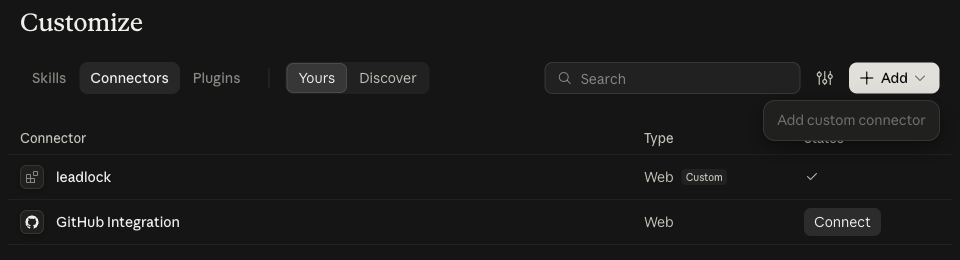
-
Sign in with your Leadlock account
Click Connect. A Leadlock page opens. Sign in with the email and password you already use for app.leadlock.ai.
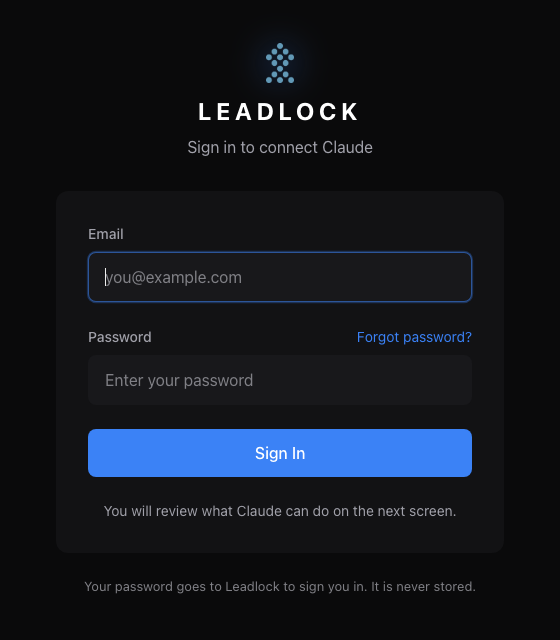
Your password goes to Leadlock to sign you in. It is never stored. -
Review and approve
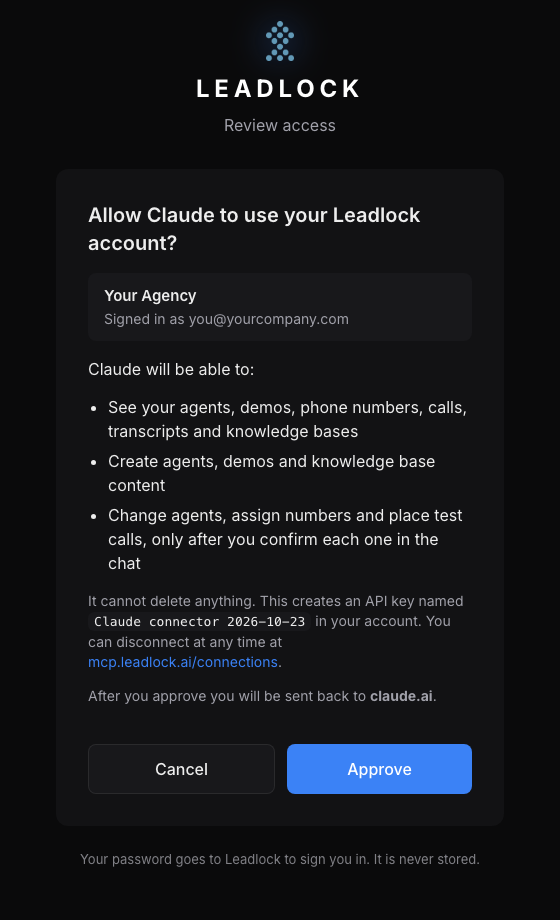
The next screen lists exactly what Claude will be able to do. Click Approve and you are sent back to Claude, connected.
Try it
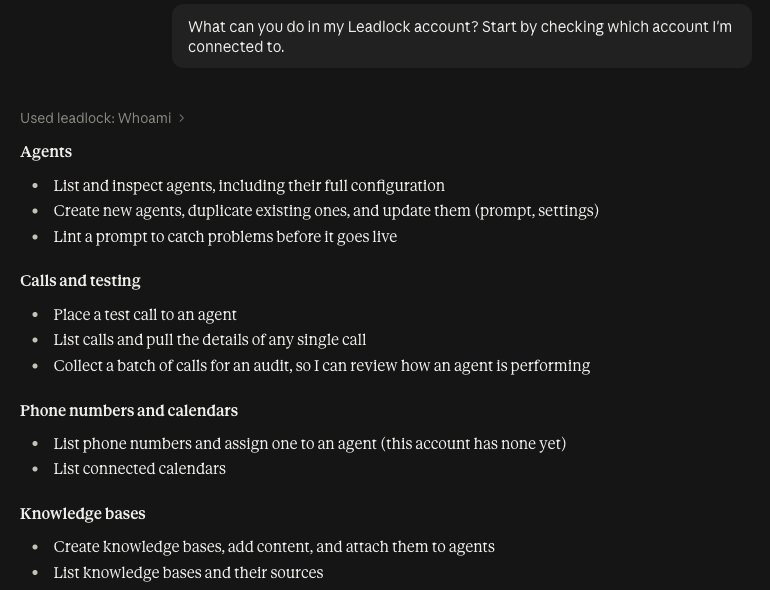
Start a new chat and ask:
- "What can you do in my Leadlock account?"
- "Build a demo for https://acmeplumbing.com"
- "Audit Maya's calls from this week"
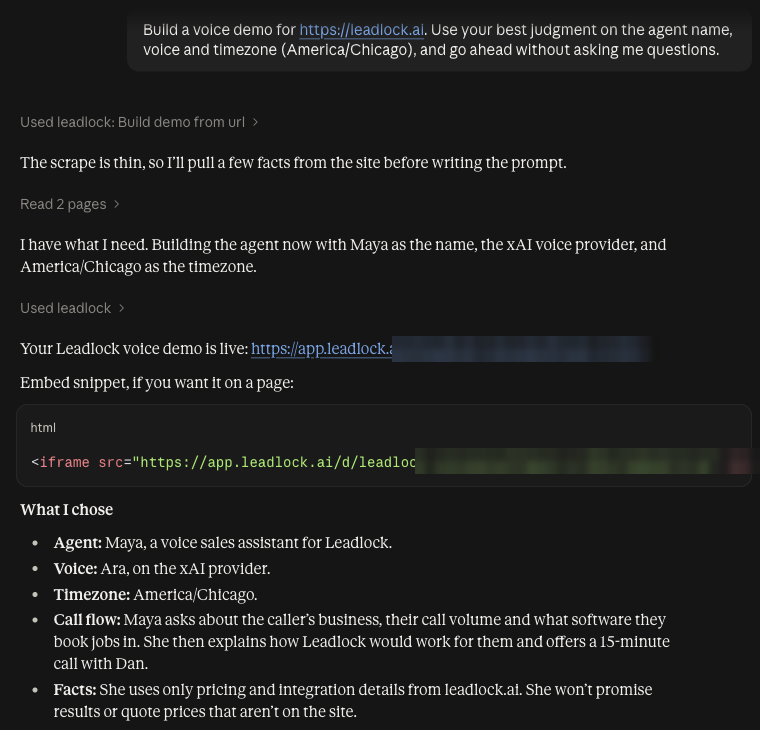
Other apps
ChatGPT (custom connectors in developer mode), Cursor and Codex can add the same URL,
https://mcp.leadlock.ai/mcp, as a remote MCP server. They run the same sign-in and approve flow.
It is standard MCP over Streamable HTTP with OAuth 2.1, so any client that supports remote MCP servers with
OAuth works.
What it can and cannot do
- Reads anything: agents, demos, phone numbers, calendars, calls, transcripts, recordings and knowledge bases.
- Creates freely: agents, demos and knowledge base content. A new agent answers no phone calls until it is put on a phone number; a demo page is live as soon as it is built, so you can share it.
- Asks you first before changing an existing agent, connecting a tool server to it, routing or buying a phone number, attaching a knowledge base or placing a real call. Claude shows a preview and only goes ahead after you say yes.
- Never deletes anything. There are no delete tools. Deleting stays in the Leadlock dashboard.
The tools
| Area | Tools |
|---|---|
| Account | whoami |
| Agents | list_agents get_agent create_agent update_agent duplicate_agent connect_tools lint_prompt |
| Demos | import_business_from_url build_demo_from_url create_demo list_demos get_voice_doors |
| Phone numbers | list_phone_numbers assign_phone_number get_phone_number |
| Calendars | list_calendars |
| Calls | place_test_call list_calls get_call collect_calls_for_audit |
| Knowledge bases | list_knowledge_bases create_knowledge_base add_knowledge list_knowledge_sources attach_knowledge_base |
Disconnecting
There are two ways:
- Remove the connector in Claude's settings.
-
Visit mcp.leadlock.ai/connections, sign in, and click
Disconnect. This revokes the API key the connector created, named like
Claude connector 2026-10-23.
You can also revoke that key yourself in the Leadlock dashboard under Settings > API Keys. The connector keeps only the API key it created, encrypted.
Building your own integration?
The connector runs on the same public API. Browse every endpoint in the API Reference, or download it: the OpenAPI spec (JSON) for code generators and tools like Postman, or the full reference as one Markdown file to drop into an AI assistant.